This page lists improvements to the Circuit Schematic and System Diagram editors in the AWR Design Environment.
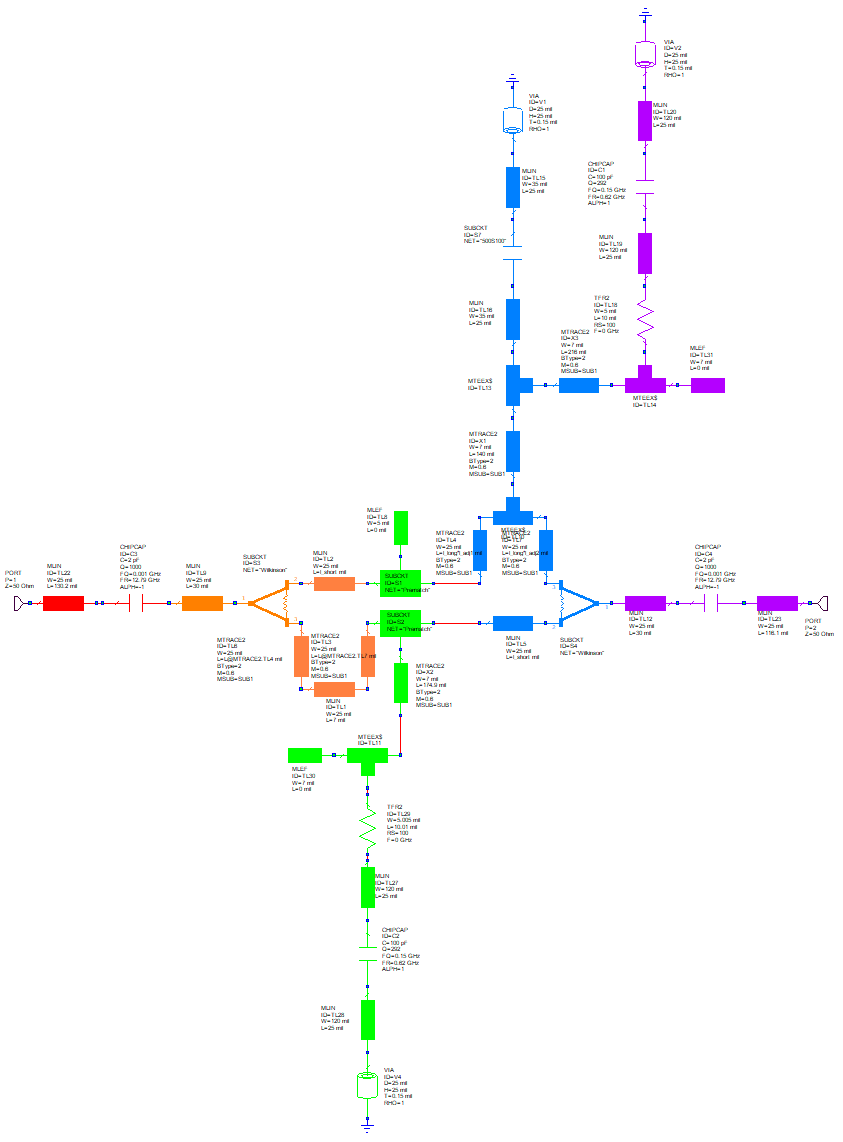
Further Customize Schematic Appearance with Filled Symbols
Manage Design Data with Variable Browser Improvements
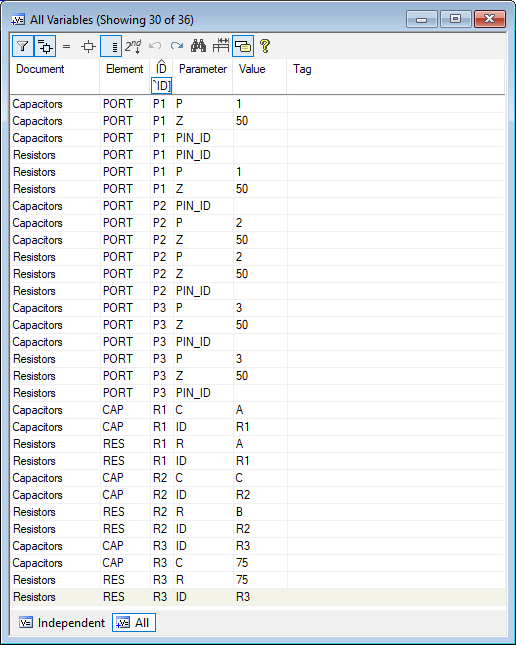
The project opens to two schematics, a Global Definitions page, the Variable Browser, and then simulates.
Each of the schematics depend on both Global and Local variables.
The Variable Browser is currently showing a V11+ view that contains filterable lists of all the independent variables and supports group editing, tuning control, optimization control, and other functions.
Click the All button at the bottom of the Variable Browser.
The All view displays all variables (both independent and dependent) and is intended to help manage projects.
At the top of the Variable Browser are controls for the following (hover the cursor over the buttons for balloon Help):
Show elements, equations, or both.
Show all element parameters or just the ID.
Show/hide secondary parameters.
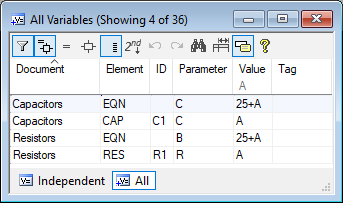
To see the project management power of this variable view, enable the controls for Show elements and equations and Show all parameters. Enter A as a filter, just below the Value column heading.
Note that the A variable is used directly in two schematics and in two equations in schematics.
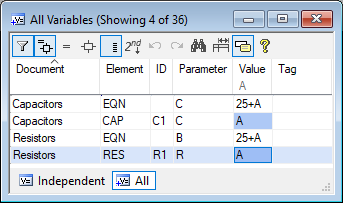
Select the Value column for the "CAP" row, then multi-select (Ctrl + Click) the Value column for the "RES" row.
Change one of the selected A values to D and press Enter.
Both elements are updated to use the D Global Definition. Optionally simulate (F8) to see the difference.
Click the Undo button in the Variable Browser to change both elements back to the A value and then click the Redo button in the Variable Browser to switch both elements back to the D value.
Click on the entries in the Element column to zoom to the corresponding element or equation.
With the Variable Browser improvements, design management, including changing many elements or equations at once with the Undo/Redo capability are supported.